Activity Monitoring Settings
Activity Monitoring settings window can be used to customize the look and feel of the "Activity Monitoring" window.
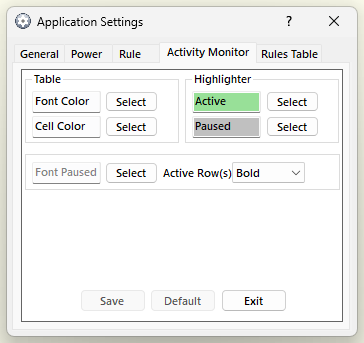
- Font Color
Sets the font color in the "Activity Monitor" window. Click on the “Select” button next to “Font Color” and then select the appropriate color. Click on “OK” to apply the new color or “Cancel” to cancel and return to the Activity Monitoring settings window.
- Cell Color
Sets the background cell color in the "Activity Monitor" window. Click on the “Select” button next to “Cell Color” and then select the appropriate color. Click on “OK” to apply the new color or “Cancel” to cancel and return to the Activity Monitoring settings window.
- Highlighter Active
Sets the background cell color of the active row(s) in the "Activity Monitor" window. Click on the “Select” button next to “Active” and then select the appropriate color. Click on “OK” to apply the new color or “Cancel” to cancel and return to the Activity Monitoring settings window.
- Highlighter Paused
Sets the background cell color of the active row(s) in the "Activity Monitor" window when AutoStandByPro is paused. Click on the “Select” button next to “Paused” and then select the appropriate color. Click on “OK” to apply the new color or “Cancel” to cancel and return to the Activity Monitoring settings window.
- Font Paused
Sets the font color in the "Activity Monitor" window when AutoStandByPro is paused. Click on the “Select” button next to “Font Paused” and then select the appropriate color. Click on “OK” to apply the new color or “Cancel” to cancel and return to the Activity Monitoring settings window.
- Active Row(s)
Sets the style of the fonts of active row(s) in the "Activity Monitor" window. Click the drop down menu next to “Active Row(s)” and select the appropriated style. Click on “OK” to apply the new style or “Cancel” to cancel and return to the Activity Monitoring settings window.
Please note that each time a change occurs in a setting in the Activity Monitoring settings window this change will reflect throughout the window. This is done in order to help the user better understand the changes that will occur in the "Activity Monitoring" window after saving them.