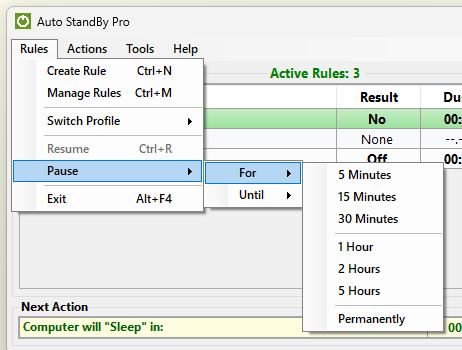
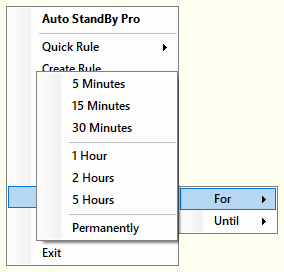
In order to Pause the processing of rules then please either:
The processing of the rules can be paused For the following time intervals:
Also the processing of the rules can be paused either Until:
In any case the processing of the rules will automatically be resume when the corresponding condition is met.
At the bottom of the “For” menu you can also select Permanently. The rules then stay paused until you select “Resume”, even if AutoStandByPro or the computer is restarted in the meantime.
While the active profile is inactive because of its schedule, the rules are already paused, so the “Pause” and “Resume” menus are not available.
Note 1: In case you need to pause the processing of rules more quickly AutoStandByPro supports using the combination of the keys "Ctrl + P" while the "Activity Monitor" window is open and active.
Note 2: An alternative way to pause the processing of rules is to start up AutoStandByPro in Safe Mode. In order to start up AutoStandByPro in safe mode click on the windows "Start" button and navigate to "Auto StandBy Pro" → "Auto StandBy Pro (Safe Mode)". AutoStandByPro will start up Paused.
Note 3: The pause menu will be available only when there are rules in the Activity Monitoring window, and the resume menu will be available only when a pause is in effect.