Switch Between Profiles
AutoStandByPro supports switching between profiles in real-time. In order to switch between profiles please either:
- Open the "Activity Monitoring" window and from the “Rules” menu select “Switch Profile”. A list of all the available profiles will appear. The profile name that has a check mark next to it is the currently active profile.
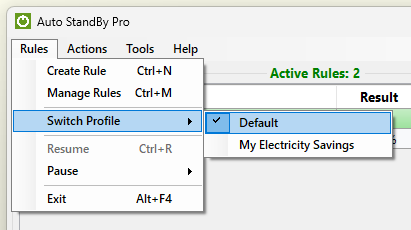
From the list of profiles please click on the profile name that you wish to switch to. If the current active profile has any enabled rules then you will be prompted to confirm before switching. Please click "Yes" to continue.
- Open the “Rules Table” window and from the "Profile" menu select “Switch Profile”. A list of all the available profiles will appear. The profile name that has a check mark next to it is the currently active profile. From the list of profiles please click on the profile name that you wish to switch to.
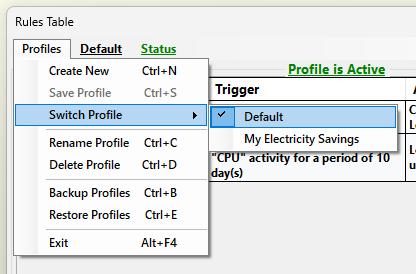
When switching between profiles in the "Rules Table" window it will not have any effect in the "Activity Monitor" window until you click on the "Apply" button and save the changes.
- While the AutoStandByPro application is minimized to the "System Tray" click on the application system tray icon and from the context menu select “Switch Profile”.
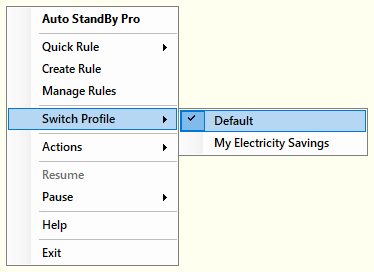
From the list of profiles please click on the profile name that you wish to switch to. If the current active profile has any enabled rules then you will be prompted to confirm before switching. Please click "Yes" to continue.