Rules Table
The Rules Table window can be used for displaying and managing the Rules and Profiles used in AutoStandByPro. This includes Creating, Deleting and Renaming Profiles and Rules, Backing Up and Restoring Profiles, Merging Profiles with different set of Rules and Saving and Applying the changes.
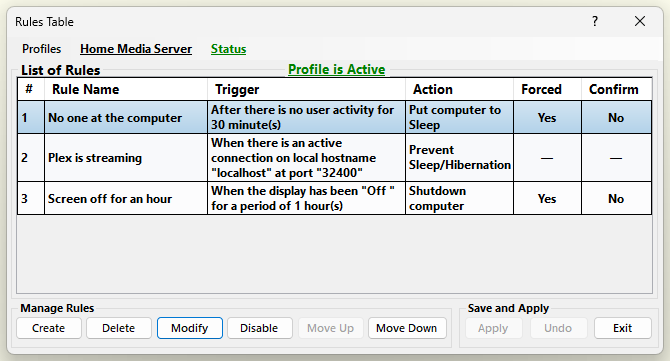
Menus and profile status
The menu bar of the Rules Table window has three menus:
- Profiles
Create a new profile (Ctrl+N), save the changes to the current profile (Ctrl+S), switch to another profile, rename (Ctrl+C) or delete (Ctrl+D) the current profile, and back up (Ctrl+B) or restore (Ctrl+E) all your profiles. See Manage Profiles, Switch Between Profiles and Backup/Restore.
- The name of the current profile
Enable, disable or delete all or the selected rules at once, add (merge) the rules from a saved file into the current profile (Ctrl+M), and import (Ctrl+I) or export (Ctrl+X) a single profile. See Manage Rules (Batch).
- Status
Choose when the profile is active: always, never, or only on certain days and times. See Profile Schedule.
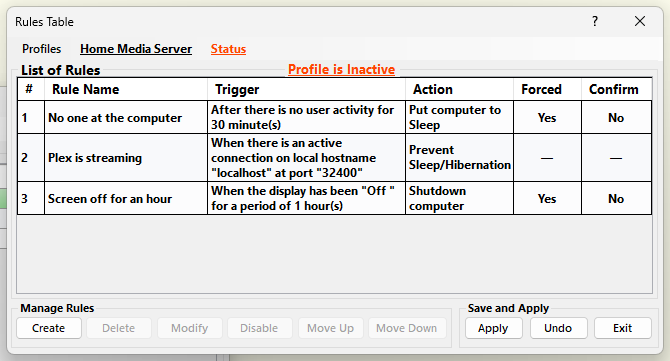
The label above the list of rules shows whether the current profile is active right now: “Profile is Active” in green or “Profile is Inactive” in orange-red. While the profile is inactive its rules are not executed; see While a profile is inactive.
Rules that need AutoStandByPro Plus are shown greyed out with a padlock when there is no Plus license. They are not executed and cannot be modified or enabled, but they can be deleted.
On the Rules Table window we have the following options:
- Create
Opens the "Rule Creation" window in order to Create a New Rule.
- Delete
Deletes an existing rule. First select from the "Rules Table" window the rule that you wish to delete. Then click on "Delete" and answer "Yes" to confirm the deletion of the rule.
The button "Delete" will activate only when you select an existing rule.
- Modify
Modifies an existing rule. First select from the "Rules Table" window the rule that you wish to modify and then click on "Modify". The “Rule Creation” window opens with the existing settings of the rule. For more info see Modify a Rule.
The button "Modify" will activate only when you select an existing rule.
- Enable/Disable
Toggles the status of an existing rule. First select from the "Rules Table" window the rule that you wish to change its status. According to the rule's current status the button will be either "Enable" or "Disable". Click on the button to toggle the status of the rule.
Note 1: The button "Enable/Disable" will activate only when you select an existing rule.
Note 2: Any Time-Based Rule can not be automatically enabled if their "Remainig Time" is below zero. Instead you have to manually modify each such rule before enabling it.
- Move Up
Moves Up an existing rule. First select from the "Rules Table" window the rule that you wish to move up. Click on the "Move Up" window to move the rule one place up. Moving the rule up will not have any effect while processing the rules. It only affects the order that the rules are displayed in the "Activity Monitor" window.
The button "Move Up" will activate only when you select an existing rule and that rule is not the rule at the top of the "Rules Table" window.
- Move Down
Moves Down an existing rule. First select from the "Rules Table" window the rule that you wish to move down. Click on the "Move Down" window to move the rule one place down. Moving the rule down will not have any effect while processing the rules. It only affects the order that the rules are displayed in the "Activity Monitor" window.
The button "Move Down" will activate only when you select an existing rule and that rule is not the rule at the bottom of the "Rules Table" window.
- Apply
Saves and applies changes to the existing set of rules. Every time we apply a new set of rule(s), any existing processing of rule(s) will stop and the new set of rule(s) will be loaded into the kernel to start a new process.
The button "Apply" will activate only when you have made changes in the existing set of rule(s).
- Undo
Undo any changes before applying them. Click on the Undo button and answer “Yes” to the confirm window to undo any changes and revert to the last saved existing set of rules.
The button "Undo" will activate only when you have made changes in the existing set of rule(s).
- Exit
Exits the "Rules Table" window. If there are unsaved changes AutoStandByPro will ask for confirmation before exiting. Answer "Yes" if you wish to exit and loose any unsaved changes or "No" to return to the "Rules Table" window.